
These Excel Leave Trackers 2026, 2027 and 2028 (template) enable you to register leave easily and clearly, so you can keep track of your employees’ days off. Many companies and government bodies use this type of Excel sheet solution to manage their employees’ leave.
In contrast to other leave management sheets, this one has a simple structure and is very easy to use! We have offered Excel Leave Trackers in Dutch since 2014, and as of 2026, these are available in English and German as well.
Excel Leave Trackers Excel 2026, 2027 and 2028
If you would like to receive the Excel Leave Trackers 2026, 2027 and 2028, we offer these as a set of three, so that you can register your employees’ leave properly for the next couple of years. We charge a one-off fee of 37.50 euros for this (excl. VAT).
To order the leave trackers, please send an email to: info@pctipvandedag.nl.
State in the order which type of leave tracker you wish to receive. There are two types (A01 and A02); see below for more information. Following payment of the invoice, we will send you your leave trackers as soon as possible, often within just a few hours!
Examples of available types of leave tracker (2025)
Type A01 is the most popular type of leave tracker. It contains all the months on a single tab and provides a clear overview. If you prefer to have separate tabs for each month rather than the months listed vertically in the same tab, choose type A02.
Each type of leave Tracker enables you to note the days of leave that employees have requested per month and per employee. Longer holidays or individual days off are clearly visible.
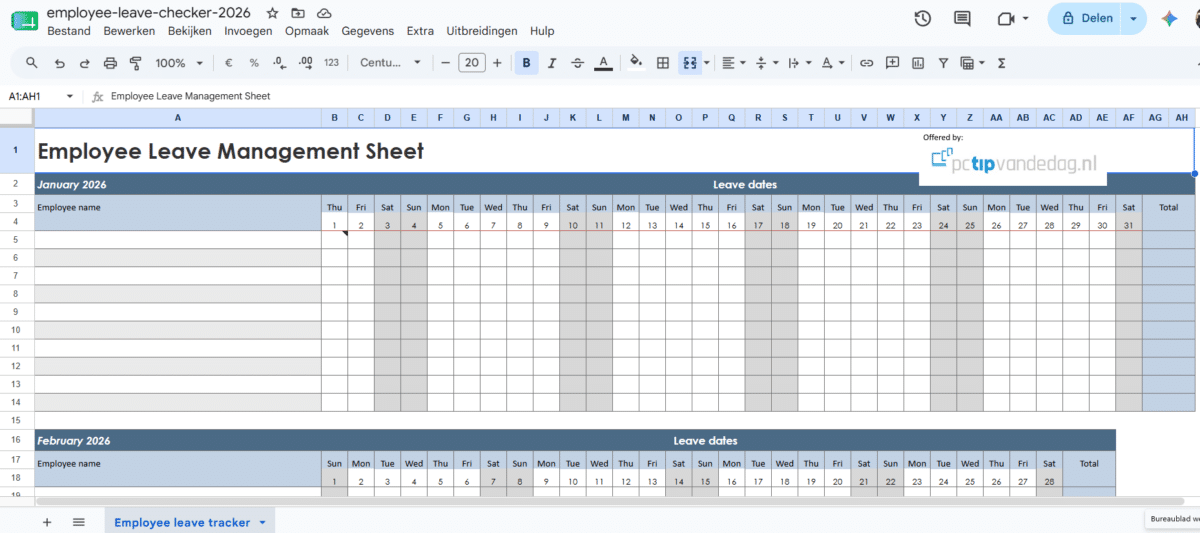
Is it possible to use our leave trackers in Google Spreadsheet?
The answer is yes! You can easily add a leave tracker to Google Spreadsheet. The advantage of this is that you can update the spreadsheet and your employees can see the most recent updates to the holiday schedule in real time. In addition, employees can see whether there is capacity for them to request leave on their chosen day.
To use the leave tracker in Google Spreadsheet, it is important to work through the steps listed below.
- Go to Google Sheet and log in using your Google Account.
- Select the option ‘Blank spreadsheet’.
- Once the blank spreadsheet has opened, select File > Open and then the option Upload. Import the leave tracker into Google Spreadsheet from your computer, after which you can use it along with other employees.
Is it possible to receive narrow-format leave trackers so that I can print them more easily?
Both types of leave tracker are available in a narrow format. The days are listed using a single letter instead of three letters. This is handy if you also want to print out leave management sheets for your employees. If you wish to use this version, please state this in your order.
How many employees can I use the leave trackers for?
As standard, the leave trackers can be used for 10 employees. If more than 10 people work in your organisation, you can easily expand this number by increasing the number of rows for employees. On request, we can also provide leave trackers for organisations with more than 10 employees.
